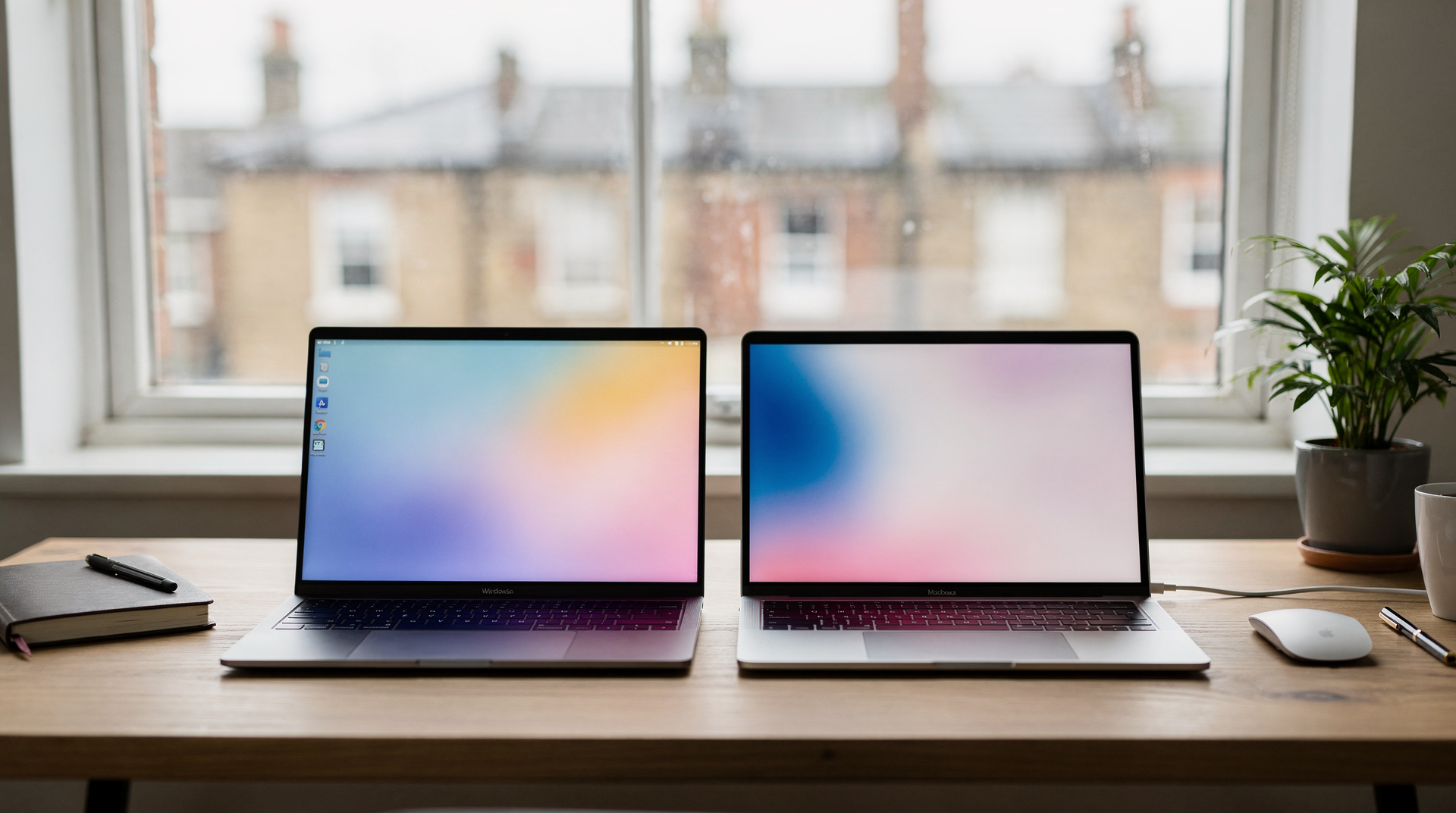
Forget the bug fixes. Operating system updates have evolved into strategic toolkits that quietly reshape your daily workflow—or saddle you with features you’ll never touch. Both Microsoft and Apple now ship dense packages of security patches, productivity boosts, and cross-device integration plays. The challenge is filtering the signal from the noise. Having tracked these rollouts from London while watching how they land in startups, design studios, and enterprise IT suites, I’ve learned that the metric isn’t “what’s new.” It’s “what actually reduces friction for the way I work.” This guide is a pragmatist’s walkthrough of the genuinely useful newcomers in recent Windows and macOS updates—and a framework for deciding what’s worth your attention.
Почему обновления больше нельзя игнорировать
Modern OS development isn’t linear. It tends to move in layers: stabilisation first, then subtle performance work, and finally features that can meaningfully rewire your habits. The takeaway is that you need to evaluate not just what arrived, but why it might matter in your unique setup.
Updates now typically fall into three core zones:
– **Security** – account protection, encryption layers, network-level defenses. Miss these and you’re gambling with known exploits.
– **Performance** – memory management, wake-from-sleep times, battery consumption, background process taming.
– **Convenience** – search, clipboard, window management, the silent glue that syncs your life across devices.
In practice, the most worthwhile upgrades aren’t the ones that dazzle in a keynote. They’re the ones that quietly eliminate redundant clicks, shave seconds off repetitive tasks, and keep your data out of reach of the latest ransomware variant. I’ve watched a London fintech startup skip a cumulative security patch for two weeks and then spend a weekend rebuilding their dev environment after an attack that exploited a vulnerability fixed in that very patch. That’s not an edge case—it’s the new normal.
Как понять, какие функции вам действительно нужны
Before hitting “Install now,” run through three simple filters:
– **What am I doing on this machine most often?**
– **Which actions am I repeating every single day?**
– **What genuinely irritates me right now: safety lapses, sluggishness, collaboration friction, or the interface itself?**
If your laptop is a mobile office, autonomy and power management should be at the top of your list. If you’re juggling research papers, code, and a dozen browser tabs, window layout tools and virtual desktops probably matter more. If you handle sensitive client data—whether you’re a solicitor, a health-tech founder, or a freelance consultant—permission controls and encryption health become non-negotiable. The key is to make the update serve your dominant scenario, not the other way around.
Windows: новые функции, которые чаще всего реально полезны
1. Улучшенное управление окнами и рабочими пространствами
Windows has bet heavily on multitasking for years, and recent builds sharpen that edge. We’re beyond snap-to-side: you now get intelligent layout suggestions, quick groups that remember your arrangement of windows, and virtual desktops that feel less like an afterthought.
What this means day to day: you can pin a research paper, a code editor, and a Slack thread in a single snap group and recall them with one click. The benefit isn’t just aesthetics—it’s about preserving mental context when you’re context-switching across complex tasks.
– Less time dragging and aligning windows.
– Core triad (browser, document, messenger) always accessible.
– Reduced on-screen chaos without third-party utilities like PowerToys FancyZones, though those power tools remain valuable for granular layouts.
**Who benefits most:** analysts, editors, developers, project managers, and anyone who’s ever lost a train of thought while hunting for a buried window.
2. Поиск и системные подсказки
Windows Search has matured into something approaching a command bar. It’s no longer just a programme launcher; it surfaces recent files, deep-links into settings, and—especially in the latest AI-infused builds—can anticipate what you’re about to ask. The real trick is unlearning the habit of clicking through folder trees. Start typing a fragment of a document name, a setting keyword, or even a natural-language query like “change my battery saver settings,” and the system delivers.
The payoff:
– Navigation becomes near-instant.
– You stop losing track of documents that live in obscure subfolders.
– System tweaks don’t require memorising control panel paths.
**Common mistake:** clinging to manual pathways out of muscle memory. I’ve coached entire teams to use the search bar as their primary interface; once they do, they’re surprised by how much time it reclaims.
3. Безопасность входа и защита данных
The most critical updates are often invisible. Behind the scenes, Windows rolls out improvements to TPM-backed integrity, Windows Hello biometrics, exploit mitigations, and the built-in antivirus engine. For the average user, this translates to a lower chance of falling victim to credential theft or drive-by malware. For professionals, it’s a compliance baseline that increasingly matters in regulated sectors.
After any major update, verify these essentials:
– Lock screen is active and not easily bypassed.
– Windows Hello (fingerprint or facial recognition) is configured, or a strong PIN is in place.
– Core isolation, memory integrity, and controlled folder access are enabled where applicable.
– Security notifications haven’t been suppressed.
A quick post-update audit here can thwart a breach that might otherwise go unnoticed for weeks.
4. Интеграция с облаком и кросс-устройствами
Microsoft’s Phone Link and OneDrive are no longer optional extras; they’re woven into the fabric of the OS. Clipboard sync, tab handoff, and the ability to take a call on your PC feel less like novelties and more like productive bridges for those who flutter between phone and laptop all day. For Android users especially, the gap with iPhone-Mac eco-system parity has narrowed significantly.
This matters if you:
– Routinely copy data between phone and PC.
– Store working documents in the cloud and need consistent access.
– Collaborate in teams where shared files and links drift across devices.
The real measure is simple: if setting up a new device once involved hours of manual transfer, and now feels like a login and a coffee break, the investment in these integrations has paid off.
macOS: что обычно реально меняет ежедневную работу
1. Непрерывность между Mac, iPhone и iPad
Apple’s ecosystem continuity remains the gold standard. The latest macOS builds tighten Handoff, Universal Clipboard, AirDrop reliability, and the Instant Hotspot handshake. None of these are radical in isolation, but together they create a fabric where a note started on your iPhone on the Tube surfaces on your Mac at the exact scroll position, without a second thought. That seamlessness is what you actually buy into when you stay inside the walled garden.
Payoff multiplies if you:
– Own multiple Apple devices.
– Frequently switch contexts between mobile and desktop.
– Value not having to email yourself files or reminders.
The friction removed is both cognitive and operational: you stop thinking about the transfer and just continue working.
2. Spotlight и быстрый доступ к действиям
Spotlight has become a power-user’s Swiss Army knife. Beyond file search, it handles currency conversions, unit maths, dictionary definitions, and even quick actions like “set a timer.” I launch Xcode projects, look up acronyms, and check flight statuses all from the same bar. If you’re still navigating through the Applications folder or diving into System Settings manually, you’re missing the Mac’s most efficient interface.
Why it’s a daily win:
– Reduces clicks and context-switching.
– Accelerates navigation for those who prefer keyboard-first workflows.
– Keeps you focused by letting you summon actions instead of leaving your current window.
**Tip:** After an update, spend five minutes exploring what new data detectors and quick actions Spotlight has absorbed. The return on that tiny investment is perpetual.
3. Конфиденциальность и контроль разрешений
macOS’s privacy model grows stricter with almost every release. The orange recording indicator, granular microphone and camera permissions, and periodic prompts to review app access are more than just cosmetic—they are persistent audits. For anyone handling confidential material, this is a welcome nudge to regularly prune what apps can see.
After a big update, a practical ritual:
– Go to System Settings > Privacy & Security.
– Check which apps have camera, microphone, screen recording, and full disk access.
– Revoke anything you don’t recognise or no longer need.
– Don’t dismiss security prompts without reading them; Apple’s alerts often surface hidden background activity.
Ignoring these is like leaving your office blinds open during a confidential meeting.
4. Производительность и энергосбережение
On Apple Silicon machines, macOS aggressively manages efficiency cores and idle processes. The result is longer battery life and cooler, quieter operation—traits that genuinely matter when you’re spending six hours off-plug in a library or a client’s conference room. Windows laptops often promise comparable endurance but rarely deliver without throttling or fan noise. The Mac’s ability to wake instantly and maintain a stable thermal profile gives it a quiet reliability that’s easy to undervalue until you’re caught without a charger.
This is most noticeable for:
– Mobile workers who roam between meetings.
– Students and researchers who camp out in cafés.
– Any scenario where low noise and consistent performance matter more than raw clock speed.
Сравнение: что полезнее в Windows и macOS
The head-to-head below isn’t about crowning a winner; it’s about mapping your daily priorities to the strengths of each platform.
| Task | Windows | macOS |
|---|---|---|
| Multitasking | Rich window management with Snap Layouts and virtual desktops | Convenient, but more minimalist—rely on Mission Control and Spaces |
| Search & Launching Actions | Fast access to files, settings, and apps; AI-enhanced suggestions | Spotlight as a universal action hub, from calculations to deep-linking |
| Device Ecosystem | Strong cloud and mobile linkage via Phone Link and OneDrive | Very strong integration with iPhone and iPad; seamless handoff |
| Privacy | Depends on user discipline and configuration; enterprise-grade tools exist | Strong emphasis on permissioning and data access transparency |
| Laptop Battery & Stability | Varies widely by manufacturer; modern Windows 11 devices improving | Typically excellent on Apple Silicon and well-optimized for autonomy |
The real decision often comes down to which ecosystem you’re already invested in and which set of trade-offs aligns with your workflow. For a pure writing and research machine, the Mac’s battery consistency often tips the scales. For a multi-monitor, multi-app, heavy-data-load environment, Windows’ window-management maturity can be a productivity multiplier.
На какой стадии вы сейчас находитесь
Если вы обычный пользователь
You need stability, security, straightforward search, and clean file sync—without extraneous complexity. Your instinct to wait a few days after a major release before installing is sound. Prioritise compatibility checks: make sure your printer driver, VPN, and core apps are happy before you commit. After updating, verify that your usual routine (web browsing, email, streaming) hasn’t been disrupted. If you’re in this camp, don’t underestimate the impact of a slow, gradual shift to using search as your primary navigation method.
Если вы работаете в нескольких приложениях одновременно
Your pain points are window chaos, lost context, and the constant mental load of rearranging your digital workspace. Your first test after an update should be the new window management tools—Snap Layouts on Windows, or creating dedicated Spaces on macOS that you can call up by muscle memory. Also explore any improvements to virtual desktops and quick-launch shortcuts. A morning spent tuning these can reclaim hours over a quarter. If you’re on Windows, consider pairing native snapping with a lightweight utility like Microsoft PowerToys to supercharge your layout options.
Если вы храните чувствительные данные
Your non-negotiables are login security, permission hygiene, account protection, and encryption health. After an update, don’t trust the defaults. Open the privacy dashboard, scrutinise which apps have access to camera, microphone, location, and files. Verify that disk encryption is active. If you use biometrics, confirm they haven’t been reset or weakened. The ten minutes you spend here significantly raise the bar against opportunistic attacks, and in regulated industries, it’s often a compliance prerequisite.
Пошаговый чек-лист после крупного обновления
Treat these steps as a ritual rather than a formality—they’ve saved me from a bricked presentation more than once.
- Confirm the system boots normally and no start-up errors appear.
- Test Wi‑Fi, Bluetooth, audio output, and webcam functionality.
- Launch your core applications (Office suite, code editor, design tools) and check for compatibility glitches.
- Review privacy settings and app permissions; prune anything outdated.
- Examine start-up programmes and background processes—disable unnecessary ones.
- Ensure your backup system (Time Machine, File History, or cloud sync) is active and current.
- Observe your laptop’s battery behaviour over the next 2 days; anomalies often signal a driver issue.
- If anything feels unstable, defer updating your main production machine further and wait for the first stability patch.
Типовые ошибки после обновления
Even seasoned users stumble here. The most frequent missteps I see in London’s tech scene:
- Applying a major feature update to the primary work machine on Day One without testing on a secondary device or a virtual machine.
- Dismissing new privacy prompts or ignoring the updated permission structure, then wondering why an app can’t access the camera.
- Skipping the full backup before a feature release, assuming cloud sync will catch everything—it often misses configuration details.
- Judging an update purely by its visual changes rather than its impact on speed, battery, and under-the-hood reliability.
- Procrastinating security updates for months, accumulating a patch backlog that leaves a known vulnerability vector open.
I recall one startup that rolled out a major Windows feature release to 60 employee laptops on launch morning without testing. They lost two days of collective productivity to driver conflicts. A simple pilot group of three devices would have flagged the issue.
Когда обновляться сразу, а когда подождать
| Scenario | Recommended action |
|---|---|
| Critical security patches | Install as soon as possible—don’t leave the door open for exploit. |
| Major feature release | Wait a few days, check forums and tech press for any showstopper bugs, then proceed. |
| Work laptop with mission-critical tasks | Back up first, test compatibility on a spare device if possible, and only then update. |
| Home desktop without urgent tasks | You can update earlier, especially if you’re eager to try new features. |
The principle is simple: urgency scales with risk. Security fixes demand haste; feature upgrades reward patience.
Какие функции часто переоценивают
Not every shiny addition earns its place. The announcements that tend to get overhyped fall into predictable categories:
– Cosmetic interface reskins that look fresh but don’t alter workflow.
– Standalone AI widgets that lack a clear daily use case—like a smart assistant that can’t fetch your calendar reliably.
– Features that dazzle in a demo but require you to completely restructure your habits before they deliver value.
– Rarely used options that demand you learn a new interaction model for a task you perform twice a year.
I remember when a certain sidecar-style feature was unveiled to applause, yet many users couldn’t distinguish it from existing mirroring capabilities. The acid test: does the feature eliminate a step you actually take, or is it a solution in search of a problem? If it doesn’t save time, bolster security, or noticeably simplify a recurring task, its net worth to you is probably low.
FAQ
Нужно ли устанавливать все обновления сразу?
If it’s a critical security patch, yes—don’t dawdle. For full-blown feature releases, let a few days pass while the community uncovers any regressions. A brief pause on a feature update rarely hurts; a rushed install can derail your week.
Что важнее: новые функции или исправления безопасности?
For the vast majority, security and stability win every time. A new feature is only useful when it fits into your actual workflow. A missing security patch, on the other hand, is an open invitation. Prioritise safety first, then evaluate new functionality on its own merits.
Как понять, что обновление подходит именно мне?
Map it onto your daily tasks. Ask: does it make search faster? Does it reduce clicks? Will it improve battery life on my commutes? Does it close a privacy gap? If the answer is a concrete yes to any of these, it’s worth adopting. If it’s a vague promise of “innovation,” observe from the sidelines.
Почему после обновления что-то работает хуже?
Large releases can clash with older drivers, legacy software, or custom configurations. The usual fix path is to update your applications and drivers to their latest versions, then check for known issues in hardware vendor forums. A temporary rollback is sometimes wiser than wrestling with an unstable system.
Стоит ли ориентироваться только на список новых функций?
No. Feature lists are marketing snapshots, not utility maps. Stability enhancements, security undergirding, and subtle performance tweaks rarely headline the changelog but often have a greater impact on your daily life. Focus on what actually changes your experience, not on the bullet points.
Ultimately, whether you’re on Windows or macOS, the update discipline that pays off is this: don’t chase novelty, chase friction reduction. The update that silently hardens your encryption, tidies your windowing, or extends your laptop’s battery by forty minutes is worth more than a dozen flashy additions you’ll disable within the week.